> ## Documentation Index
> Fetch the complete documentation index at: https://docs.custral.com/llms.txt
> Use this file to discover all available pages before exploring further.
# Peek
> Open a record or page over the screen you're on, without losing your place.
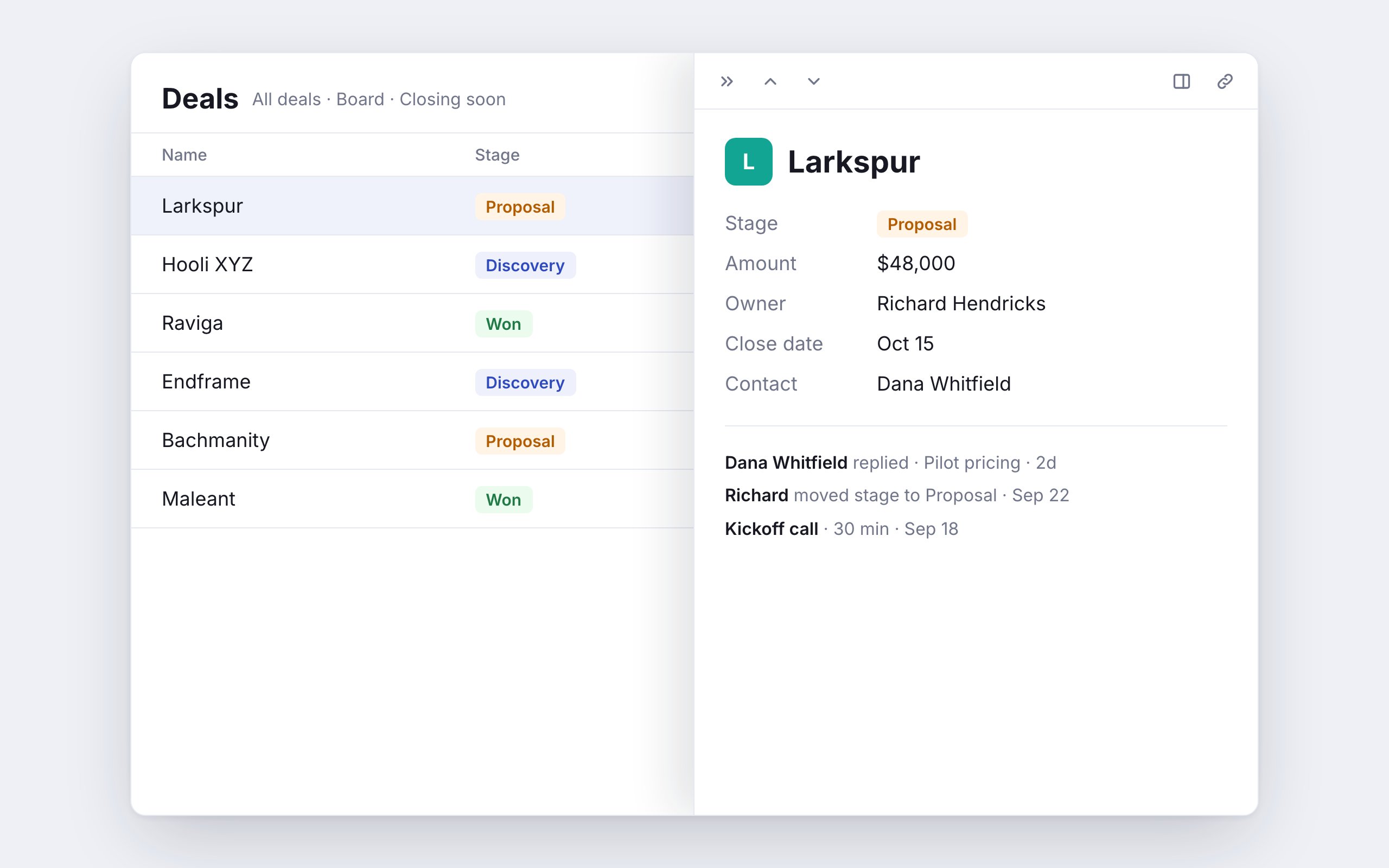
Click a record in a view and it opens in a **peek**: a panel over the screen you're on. The list behind it stays where you left it, so you can read or edit one record and move straight on to the next.
 ## Three ways to open a record
* **Side peek**: a panel on the right. The page beside it stays usable.
* **Center peek**: a larger window over a dimmed page. Click outside it to close.
* **Full page**: the record's own page.
A view's **Open records in** setting picks which one a click uses. Anywhere outside a view, such as a relation pill or a record Stella links to, a record opens in the side or center peek you used last.
⌘-click (Ctrl-click on Windows) opens the record in a new tab instead. On a phone, records always open as a full page.
Peek works across table, board, grid, list, calendar, timeline, collection and checklist views, relation sections, the library, and the tasks page.
## Moving around
The bar across the top of a peek has:
* **Close**: the » icon in a side peek, × in a center peek. **Escape** closes it too.
* **Previous** and **Next**: step through the records of the list you opened it from, in the same order.
* **Open in**: switch between side peek, center peek and full page.
* **Copy link**: copies a link to the record.
Going anywhere else in the app, through the sidebar or a breadcrumb, closes the peek.
## Resizing
Drag the left edge of a side peek to make it wider or narrower. Double-click the edge to reset it. Custral remembers the width you pick.
## Setting the default for a view
1. Open the view's **Display** menu (the sliders icon).
2. Under **Open records in**, choose **Side peek**, **Center peek** or **Full page**.
The choice applies to everyone using the view. You can also set it from a peek: open **Open in** and pick **Make … the default**.
Pages in the sidebar have the same choice: open the page's menu, then **Open as**. Pages open as a full page unless you change it.
Only members with edit access to a view or page can change its default. Everyone can still switch the mode for
themselves from **Open in**.
## See also
This documentation is built and hosted on [Mintlify](https://mintlify.com), a developer documentation platform.
## Three ways to open a record
* **Side peek**: a panel on the right. The page beside it stays usable.
* **Center peek**: a larger window over a dimmed page. Click outside it to close.
* **Full page**: the record's own page.
A view's **Open records in** setting picks which one a click uses. Anywhere outside a view, such as a relation pill or a record Stella links to, a record opens in the side or center peek you used last.
⌘-click (Ctrl-click on Windows) opens the record in a new tab instead. On a phone, records always open as a full page.
Peek works across table, board, grid, list, calendar, timeline, collection and checklist views, relation sections, the library, and the tasks page.
## Moving around
The bar across the top of a peek has:
* **Close**: the » icon in a side peek, × in a center peek. **Escape** closes it too.
* **Previous** and **Next**: step through the records of the list you opened it from, in the same order.
* **Open in**: switch between side peek, center peek and full page.
* **Copy link**: copies a link to the record.
Going anywhere else in the app, through the sidebar or a breadcrumb, closes the peek.
## Resizing
Drag the left edge of a side peek to make it wider or narrower. Double-click the edge to reset it. Custral remembers the width you pick.
## Setting the default for a view
1. Open the view's **Display** menu (the sliders icon).
2. Under **Open records in**, choose **Side peek**, **Center peek** or **Full page**.
The choice applies to everyone using the view. You can also set it from a peek: open **Open in** and pick **Make … the default**.
Pages in the sidebar have the same choice: open the page's menu, then **Open as**. Pages open as a full page unless you change it.
Only members with edit access to a view or page can change its default. Everyone can still switch the mode for
themselves from **Open in**.
## See also
This documentation is built and hosted on [Mintlify](https://mintlify.com), a developer documentation platform.