

Entities and ACLs
Every item inside Custral (an Object, Record, Section, Page, View, and more) is represented as an Entity. Entities define ownership, visibility, and access rules. Each Entity has its own Access Control List (ACL), which stores who has access and what level of control they have. An ACL entry pairs a subject (an individual user or a Group) with an access level, so you can manage permissions for one person or a whole team through the same mechanism.The hierarchy
Entities are structured in a hierarchy that mirrors your workspace. Every entity sits beneath the Workspace (your organization), which is the root of the tree:
Each level can inherit access from its parent or define its own independent ACL.
Inheritance makes management simple, while manual control allows for exceptions.
Inheritance control
Permissions in Custral flow downward by default, following the entity hierarchy. When inheritance is enabled, a subject’s access on a parent flows to its child Entities at the same level. Example:- Giving a user Edit access to the Contacts Object lets them edit all individual contact Records.
- Granting Read access to a Sales Section lets them view all Pages inside it.
- A confidential Record that only specific people can view
- A public-facing View that remains readable even when the underlying Object is private
- A Page shared with another department without exposing the entire Section
Users and Groups
Permissions in Custral can be assigned to:- Individual users: ideal for specific access needs or one-off exceptions. Example: granting an implementation specialist temporary Edit rights to a client’s data.
- Groups: reusable collections of users such as Sales Team, Customer Success, or Support. Assigning access to a Group grants the same access to all its members. When someone joins or leaves a Group, their access updates instantly everywhere that Group is referenced.
Access levels
Each Entity supports a consistent set of access levels. Higher levels always include all capabilities from the levels below.
These levels work the same for both users and Groups.
For example, giving the Sales Team Group Edit access to the Deals Object grants every team member editing permissions for all Deals.
When granting access, the editor offers None, Read, Edit, Delete, Admin, and Owner (choose None to remove a subject’s grant). Higher levels always include the capabilities below them.
Restricting one property
Most Entities use the six-level ladder above. A Property is the one exception: it offers only Can view and Can edit, because a property’s whole job is showing or hiding one value, not deleting or administering it. A property inherits its Object’s access by default. Turning that off restricts it to the people and Groups you list, on top of workspace admins, who always see and edit every property. Everyone else sees a lock where the value would be, and the property is skipped, not guessed at, in any filter, sort, or total that reads it. Restricting a property only takes access away. It can never show someone a value their Record access would otherwise hide. A property computed from others, such as a formula, a rollup, or a grade, follows the properties it reads. Restrict one of its inputs and the computed value is restricted with it; you cannot restrict the computed property on its own. The same is true of a property that names the Record itself, such as its primary property, since that name appears in every list, link, and search result.Where to manage permissions
Open Settings → Permissions to manage access across your workspace:- The Workspace panel at the top holds global grants that cascade to everything.
- The Sections & Pages tab lists your entities; click the lock icon on any row to open its access editor.
- The Objects tab lists your Objects, and each one expands to the properties on it. A property with its own restriction is marked, so a restricted value is never more than one click from the row that explains it.
Why hierarchy matters
Custral’s permission model balances consistency and flexibility:- Consistency: access applied once at a higher level flows automatically to all child Entities.
- Flexibility: inheritance can be disabled anywhere, giving you granular control where needed.
- Simplicity: Groups let you manage access for teams without updating each individual user.
- Transparency: every Entity clearly shows its source of access, inherited or direct.
Visual overview
Each Entity (like Workspace, Object, Record, or View) can choose to inherit or define its own ACL. When inheritance is on, permissions flow downward. When it’s off, that Entity enforces its own rules.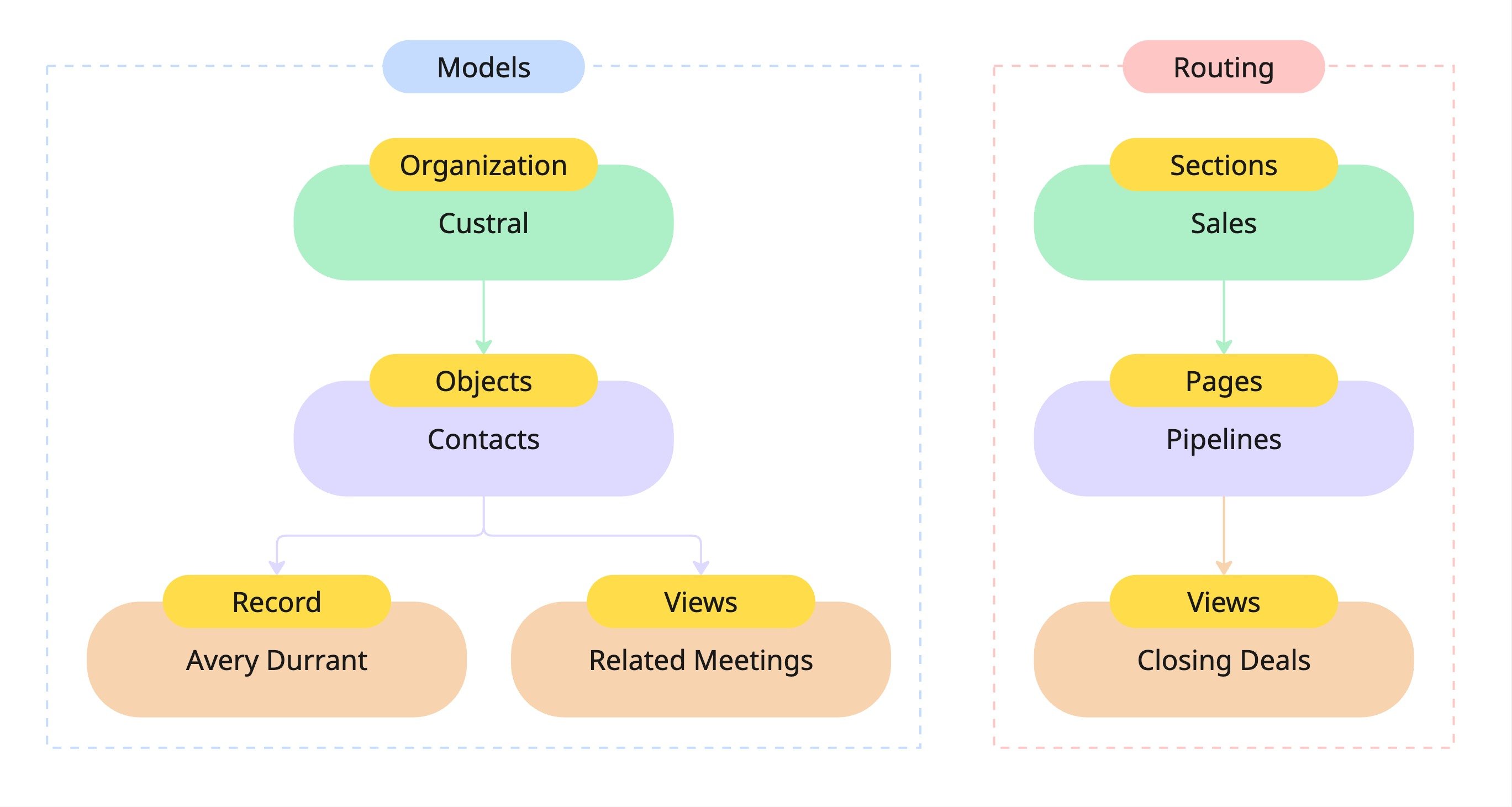
Best practices
1. Use Groups for teams Assign permissions to Groups whenever possible. It scales better than managing individuals. 2. Enable inheritance where possible Apply permissions at higher levels (like Objects or Sections) so changes cascade automatically. 3. Turn off inheritance for exceptions Disable inheritance when an Entity needs unique access, such as a private Record or a shared dashboard. 4. Limit high-level access Keep Admin and Owner grants restricted to prevent accidental permission changes. 5. Audit regularly Review Group memberships and ACLs to keep your access model clean and predictable.Troubleshooting
Someone can see more than expected. A broad grant higher in the hierarchy is probably cascading down. Review the parent Entity (or the Workspace panel), lower or remove the grant, or disable inheritance on the specific Entity to give it its own ACL. A user can’t access something they should. Check that a grant reaches them either directly or through a Group, and that inheritance isn’t turned off on the Entity or a parent. Remember overlapping grants resolve to the highest level, so add the missing grant at the level you want. I don’t see “Comment” when granting access. The access editor offers None, Read, Edit, Delete, Admin, and Owner. Use Read for view-only access; Edit and above include the ability to contribute.Summary
- Everything in Custral is an Entity with its own ACL.
- Entities can inherit access or manage it independently.
- Permissions can be given to users or Groups, and overlapping access resolves to the highest level.
- Access levels define what actions each subject can take.
Related
- Access levels: what each level allows and how to choose one.
- Global permissions: workspace-wide grants that cascade to everything.
- User Groups: grant access to many users at once.
- Users: manage the people in your workspace.